
Clock-In Clock-Out App for Small Business: Mobile, Kiosk, GPS, and Biometric Options
TL;DR
A good clock-in clock-out app for small business should do more than capture a start and end time. It should verify who punched, where they punched, whether the punch fits the schedule, whether exceptions need approval, and whether the final hours can flow into payroll without spreadsheet cleanup.
For most small businesses, the best setup is a mix of mobile clock-ins for field or remote employees, kiosk clock-ins for fixed worksites, GPS or geofencing for location accountability, and biometric verification where identity risk is high. TimeTrex brings those options into the same time, attendance, scheduling, and payroll workflow.
Why Small Businesses Need More Than a Simple Punch Button
The phrase "clock-in clock-out app" sounds simple, but payroll rarely is. Small businesses need a clean record of hours worked each day, total hours worked each workweek, overtime earnings, pay period dates, and wage details. The U.S. Department of Labor says employers may use any timekeeping method they choose, but the plan must be complete and accurate.
That is why the best clock-in app is not just a stopwatch. It is a front door to payroll accuracy. A useful system should answer five questions before payroll is processed:
Who clocked in?
PINs are fast, but biometric or photo verification can reduce buddy punching when the risk is material.
Where did it happen?
GPS and geofencing help confirm that mobile employees punched from the right job site, branch, or service area.
Can the hours be paid?
The punch record should flow into timesheets, exceptions, approvals, overtime rules, and payroll without rekeying.
Practical rule: choose a clock-in method based on the failure you need to prevent. If the problem is forgotten punches, focus on reminders and exception alerts. If the problem is off-site punching, add GPS or geofencing. If the problem is one employee clocking in for another, consider photo or biometric verification with the right privacy controls.
Mobile, Kiosk, GPS, and Biometric Clock-In Options
Small businesses do not all clock in the same way. A restaurant may need one tablet at the host stand. A construction company may need mobile GPS punches by job site. A clinic may need fast, touch-free facial recognition. A professional services team may only need web and mobile time entry.
Use the selector below to match the clock-in method to the operating problem you are trying to solve.
Interactive Method Selector
Best for field, hybrid, and multi-location teams
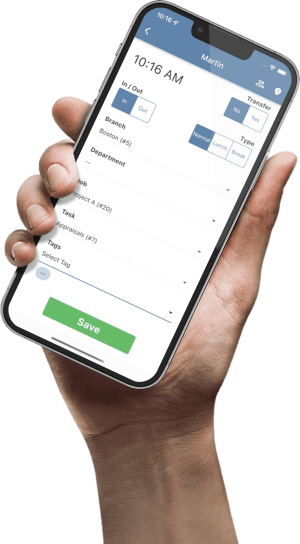
A mobile clock-in app lets employees punch from a phone or tablet. TimeTrex states that its mobile access includes GPS tracking, geofencing, real-time punch data, biometric verification, employee self-service, schedules, time off, and pay stub access.
Use it when: employees travel, work offsite, switch between jobs, or need access from outside a fixed workplace.
Best for fixed worksites and shared entrances
A kiosk turns a shared tablet, phone, or browser station into a common clock. This is useful for restaurants, clinics, retail stores, warehouses, and crews that begin work from the same location.
Use it when: you want one controlled punch station near a doorway, break room, dispatch desk, or shop floor.
Best for location accountability
GPS captures location data with a punch. Geofencing goes further by comparing the punch to an approved boundary. TimeTrex describes GPS and geofencing as a way to provide location verification and reduce off-site punching.
Use it when: payroll disputes often involve where work happened, whether the employee was on site, or which job should receive the labor cost.
Best for preventing buddy punching
Biometric facial recognition verifies the person clocking in. TimeTrex says it can turn affordable tablets or phones into facial recognition time clocks and can capture photos, GPS, and job/task details with punches.
Use it when: identity assurance matters. Create a written biometric and GPS policy, obtain required notices or consent where applicable, and confirm state and local privacy requirements before rollout.
How to Choose the Right Clock-In Setup for Each Team
The most common mistake is choosing one punch method for every employee. A business with a front desk, warehouse, field crew, and office team may need four different setups. The goal is not to make the system complicated. The goal is to match the capture method to the work pattern so the time record is easy for employees and reliable for payroll.
1. Start with the work location
If employees start and end work from the same location every day, a shared kiosk may be the cleanest option. It keeps punching consistent, avoids phone battery issues, and gives managers a familiar place to help employees who forget a punch. If employees start from job sites, customer locations, delivery routes, or client facilities, a mobile app with location controls is usually more practical.
2. Decide whether location needs to be recorded or enforced
GPS and geofencing are related but not identical. GPS records where the punch happened. Geofencing compares that location to an approved boundary and can warn or block the employee depending on policy. Some businesses only need location visibility for review. Others need stricter controls because labor is billed by job, grant, contract, site, or client.
3. Decide how much identity verification is appropriate
A PIN, password, badge, or QR code may be enough for low-risk teams. Photo capture can add a lightweight identity check. Biometric facial recognition can be useful where buddy punching is a recurring issue, where a shared kiosk is used by many employees, or where time records are frequently disputed. Because biometric rules vary by location, employers should handle consent, retention, access, and deletion practices before the first punch is collected.
4. Map exceptions before launch
A clock-in app becomes much more useful when it knows what to flag. Typical exceptions include missing in punches, missing out punches, early arrivals, late arrivals, long lunches, short lunches, unscheduled punches, geofence violations, punches into the wrong branch or department, punches into the wrong job or task, and overtime thresholds. If those rules are not planned up front, managers often end up reviewing the same issues manually every pay period.
| Team Type | Recommended Setup | Why It Works | What to Configure Before Launch |
|---|---|---|---|
| Retail store | Tablet kiosk near the staff entrance, with optional photo verification | Employees start from one location and managers can help with corrections quickly. | Grace periods, break rules, missed punch alerts, schedule comparison, manager correction workflow. |
| Construction crew | Mobile app with GPS, geofencing, job/task selection, and offline sync | Crews move between job sites and labor costs often need to be assigned to the right project. | Job-site boundaries, supervisor hierarchy, job codes, equipment yard rules, missing location exceptions. |
| Healthcare or clinic team | Shared kiosk or mobile punch with biometric or photo verification where appropriate | Shift coverage, handoffs, and identity assurance matter, especially when payroll depends on exact shifts. | Shift start/end rules, lunch and break policies, overtime alerts, privacy notices, exception severity. |
| Field service | Mobile app with GPS, job/task tracking, and manager review of exceptions | Employees may start at home, a customer site, or a dispatch point, and labor may need to be tied to service calls. | Customer/job selection, travel time rules, location review, offline punch handling, approval deadlines. |
| Office or admin staff | Web or mobile entry with schedule comparison and exception approval | Location risk may be lower, but missed entries and approval delays can still slow payroll. | Timesheet submission windows, manager approvals, PTO interaction, payroll lock timing. |
Payroll Leakage Calculator: What Do Small Punch Errors Cost?
A few unverified minutes per employee per day can become a real payroll cost. This calculator estimates the payroll exposure created by small daily timekeeping inaccuracies, such as early clock-ins, late clock-outs, buddy punching, missed break punches, and manual edits that are approved without enough review.
Estimate Timekeeping Leakage
Per pay period
$641.67Annualized at 26 pay periods
$16,683.33This is a planning estimate, not a payroll audit. Use it to decide whether GPS, kiosk, biometric, or approval controls are worth implementing.
Clock-In Clock-Out App Feature Comparison
A strong clock-in system should be evaluated by the problems it prevents and the payroll work it removes. The table below compares common punch methods by operating fit, risk, and payroll value.
| Option | Best Use Case | What It Solves | Payroll Risk If Missing | TimeTrex Angle |
|---|---|---|---|---|
| Mobile app | Field, hybrid, remote, multi-location teams | Punch access anywhere employees are allowed to work | Late entries, manual corrections, missing job details | Mobile punches can sync with attendance, scheduling, payroll, and employee self-service. |
| Kiosk | Retail, restaurants, clinics, warehouses, manufacturing | Centralized punching from a shared device | Paper cards, PIN sharing, incomplete shift records | Affordable phones or tablets can become shared time clocks. |
| GPS and geofencing | Construction, field service, home care, mobile crews | Location proof and job-site accountability | Off-site punches, wrong job costing, location disputes | GPS, geofencing, job/task data, and payroll-ready records live in one system. |
| Biometric facial recognition | Teams with buddy punching or identity risk | Verifies the person making the punch | One employee clocks in for another | Facial recognition can be paired with GPS, photos, kiosk mode, and offline sync. |
| Manual timesheets | Low-risk salaried or exception-only workflows | Simple total-hour entry | Less punch detail, more approval burden | Manual timesheets should still flow through verification, authorization, exceptions, and payroll controls. |
GPS and Biometric Policy Checklist
Location tracking and biometric verification can make time records more reliable, but they also raise privacy and employee communication issues. A small business does not need a dense policy document to start responsibly, but it does need clear answers before collecting location or biometric data.
What employees should understand
Employees should know what data is collected, when it is collected, why it is collected, who can see it, how long it is retained, and how corrections or disputes work. If the app records GPS only when employees punch in or out, say that clearly. If a device may collect a photo or biometric template, explain the purpose in plain language.
What managers should be trained to do
Managers should not treat a location dot as the whole story. GPS can be affected by device settings, signal quality, nearby buildings, or offline sync. A good process gives supervisors a way to review exceptions, ask for context, correct records, and document the decision. The goal is a reliable pay record, not surveillance theater.
What payroll should require before close
Payroll should not need to decide whether a punch is legitimate. By the time payroll starts, missing punches, out-of-geofence punches, biometric mismatches, job-code mistakes, and schedule exceptions should already be reviewed by the right manager. Payroll should receive approved time, not unresolved disputes.
| Policy Area | Question to Answer | Why It Matters |
|---|---|---|
| Purpose | Is data collected for timekeeping, job costing, safety, payroll accuracy, or all of these? | Employees are more likely to trust the system when the business reason is specific. |
| Consent and notice | Are notices, written releases, or acknowledgments required in your jurisdiction? | Biometric and privacy rules vary by state, local law, industry, and contract. |
| Retention | How long are punch records, photos, biometric templates, location records, and audit logs retained? | Retention should align with payroll, recordkeeping, legal, and operational needs. |
| Access | Who can view punch details, location data, photos, exception notes, and corrections? | Access should be limited to people who need the data for scheduling, payroll, compliance, or dispute resolution. |
| Corrections | How do employees report a missed punch, wrong location, broken device, or incorrect job code? | A fair correction process improves records and reduces payroll friction. |
Industry Examples: How the Right Clock-In Method Changes by Business Type
A clock-in clock-out app should not feel the same in every workplace. The best setup reflects how work actually happens, how payroll is calculated, and where disputes usually begin. Use the examples below to think through the practical design before choosing devices, punch rules, and approvals.
| Business Type | Best-Fit Clock-In Setup | Key Risk | What to Watch Before Payroll |
|---|---|---|---|
| Restaurant | Shared kiosk near the staff entrance, role selection, break tracking, manager corrections | Missed breaks, early clock-ins, late clock-outs, swapped shifts, minor labor rules | Meal breaks, overtime, tips or premium codes, shift swaps, manager-edited punches |
| Retail store | Kiosk or mobile app with schedule comparison and exception alerts | Employees punching before scheduled start, staying after close, or covering unplanned shifts | Schedule variance, unscheduled punches, holiday hours, department allocation |
| Construction contractor | Mobile app with GPS/geofencing, job/task selection, offline mode | Wrong job costing, off-site punches, travel time disputes, crew-level overtime | Job code, task code, GPS exceptions, crew approvals, project overtime |
| Healthcare clinic | Kiosk or mobile clock with photo/biometric verification and shift rules | Coverage gaps, missed meal periods, late handoffs, shift premiums | Shift extensions, missed meals, overtime, department changes, approvals |
| Professional services | Web or mobile time entry with project/task tracking and approval workflow | Late entries, wrong project allocation, billable/non-billable confusion | Project coding, approvals, labor cost reports, client billing alignment |
The Daily Manager Routine That Keeps Clock-In Data Clean
Technology helps, but clean payroll still depends on a good routine. Managers should not wait until payroll day to review time. A five-minute daily review can prevent hours of end-of-period cleanup.
Start of shift
Check who has clocked in, who is late, who is absent, and whether anyone punched in from the wrong location, branch, department, job, or task. If an employee cannot punch because of a device or connection problem, document the issue immediately so the correction is not reconstructed later.
During the shift
Watch for meal and break timing, long breaks, short breaks, missed breaks, employees approaching overtime, and employees working outside the schedule. If a manager approves extra time, the approval reason should be recorded while the context is clear.
End of shift
Review missing out punches, late departures, job transfers, and location exceptions. If a correction is needed, route it through the normal request or manager-edit process with a reason note. Avoid waiting until payroll close unless the issue truly cannot be resolved earlier.
End of pay period
Before payroll, the manager should review unresolved exceptions, employee verification status, overtime, PTO, holiday time, job-cost allocations, and any punch that changed after approval. Payroll should receive a clean record, not a stack of mysteries.
Daily routine principle: the best clock-in system is the one managers actually review. A perfect punch app with no daily review still creates payroll cleanup.
Cost and ROI Factors to Consider
The cheapest clock-in app is not always the lowest-cost system. A free or low-cost tool can become expensive if managers still have to chase missing punches, payroll still rekeys hours, employees dispute totals, or job-cost reports cannot be trusted. When comparing options, look at the total workflow cost.
Administrative time
Count the minutes spent fixing time records each pay period. Include employee messages, supervisor reviews, payroll edits, export cleanup, and post-payroll corrections. If a better clock-in workflow saves ten minutes per employee per pay period, the savings can outweigh the software cost quickly.
Payroll accuracy
Small time errors multiply. Seven unverified minutes a day may feel minor until it is multiplied by hourly employees, workdays, pay periods, overtime premiums, and taxes. Better capture does not guarantee perfect payroll, but it reduces the number of questionable records entering payroll.
Labor cost visibility
When punches include branch, department, job, task, schedule, and location context, managers can see where labor is being used. That helps with staffing, pricing, project management, budgeting, and overtime prevention. A clock-in system that only exports total hours may miss this value.
Employee trust
Employees notice when time records are messy. A clear app, transparent correction process, and visible approvals can reduce frustration. Trust matters because employees are more likely to report mistakes quickly when they believe the process is fair.
Small Business Rollout Checklist
The best clock-in clock-out app rollout is operational, not just technical. Define who can punch, where they can punch, what happens when the punch is wrong, and how the record becomes payroll.
Interactive Readiness Score
Select the items you already have in place.
Implementation Steps
- Map work locations. List every store, branch, job site, department, and mobile work pattern.
- Choose punch methods by role. Do not force one method on every team if the operating reality is different.
- Write policies before launch. Cover mobile device use, location capture, biometric capture, correction requests, and privacy expectations.
- Configure exception rules. Missing punches, out-of-geofence punches, late arrivals, long breaks, and unscheduled punches should surface before payroll.
- Test payroll. Run a parallel pay period and confirm hours, overtime, premiums, job costing, and pay period locks.
30-60-90 Day Rollout Plan
First 30 days: document the current process. Track how many punches are missing, how many timecards require correction, how often managers approve late, and where payroll has to rekey hours. This baseline tells you which controls matter most.
Days 31 to 60: pilot the clock-in method with one department or location. Include one manager who is detail-oriented and one team that represents common edge cases. Test offline punches, job changes, missed punches, PTO interaction, overtime alerts, and payroll export or payroll processing.
Days 61 to 90: expand the rollout, but keep the correction process visible. Review exceptions weekly. If employees keep making the same mistake, change the workflow, labels, device placement, or policy explanation instead of blaming the tool.
Common Rollout Mistakes
Launching without a correction path. Employees will forget punches. Devices will lose connectivity. Job sites will be misselected. The process should expect exceptions and handle them without panic.
Overusing biometric controls. Biometric verification is useful when identity risk is real. It should not be added just because the feature exists. Use the least intrusive method that gives the business an accurate, trustworthy time record.
Letting payroll own every exception. Payroll should not be the first team to discover a bad punch. Supervisors should resolve operational exceptions before the payroll close process starts.
How TimeTrex Supports the Workflow
The punch is only valuable if it becomes an accurate paycheck. Public TimeTrex pages describe mobile time tracking with GPS and geofencing, real-time punch data, biometric verification, employee self-service, payroll integration, facial recognition time clocks, photos, job and task tracking, offline support, and auditable logs.
That combination lets TimeTrex answer multiple buyer questions in one workflow:
For owners
Reduce time theft, manual corrections, and payroll uncertainty without stitching together a time app and a separate payroll process.
For managers
See exceptions sooner: missing punches, late arrivals, over-scheduled time, overtime, and location issues before payroll closes.
For employees
Clock in from the right device, review schedules and time off, request corrections, and trust that approved time reaches payroll.
Turn Clock-Ins Into Payroll-Ready Time Records
Use TimeTrex to connect mobile time clocks, kiosk punches, GPS/geofencing, biometric verification, scheduling, approvals, and payroll in one workforce management system.
Clock-In Clock-Out App FAQ
What is a clock-in clock-out app?
A clock-in clock-out app lets employees record when they start and stop work, usually from a phone, tablet, browser, or shared kiosk. Better systems also support schedules, breaks, GPS, biometric verification, exceptions, approvals, and payroll-ready reporting.
Does a small business need GPS time tracking?
GPS is most useful when employees work away from a fixed location, such as construction, field service, home care, delivery, security, and multi-site retail. If all employees clock in from one worksite, a kiosk may be enough.
Are biometric time clocks legal?
Biometric time clocks can be legal, but requirements vary by location. Employers should create a written biometric policy, provide required notices, obtain consent where required, limit access, and check state and local privacy laws before deployment.
What should happen when an employee forgets to clock out?
The system should flag the missing punch as an exception, allow the employee or manager to request a correction, keep an audit trail, and prevent payroll from being finalized until critical issues are resolved.
Can clock-in data go directly to payroll?
Yes, if the time system is connected to payroll or includes payroll. TimeTrex is designed to connect time and attendance, schedules, approvals, and payroll so approved hours do not need to be reentered manually.