
When a geofence blocks an employee’s clock-in, have them report when they actually started work, then check whether the punch reached their timecard. If it did, review the existing record. If it didn’t, use your approved backup log and have an authorized reviewer enter the missing time once. Give the location problem its own owner so a map or device issue doesn’t hold up the timecard review.
1. Capture the work time while it’s fresh
The employee should tell the shift supervisor the local date and time they started work, the site or job, and the exact message they saw. Record the time of the failed attempt separately. An employee may have started before the app displayed an error, or they may have tried to punch before starting work. If they report a range or aren’t sure, record that uncertainty and identify someone who can check it.
The supervisor should use one approved incident record. Check the assignment against the dispatch or shift roster, including any same-day site changes. Keep only the location detail needed to resolve the incident, such as the assigned site and entrance. Store any screenshot that’s necessary in the approved system and limit access to the people handling the review.
2. Check the timecard before asking for another punch
Open the employee’s timecard for the affected date and time zone. Look for a saved start time and any pending or later entry for the same shift. If the device lost its connection, have the timekeeping administrator check whether a punch could still arrive before adding a second record. Capture the work time in the backup log while that check is underway.
- A punch exists at the reported start
- Keep it and investigate the warning or site mismatch separately. Check the job or department if the work was assigned elsewhere.
- No punch exists
- Use the approved correction process after the supervisor verifies the start. Record who approved the correction and why.
- A later retry exists
- Reconcile it with the verified start before entering anything else. The final record should cover the worked interval once.
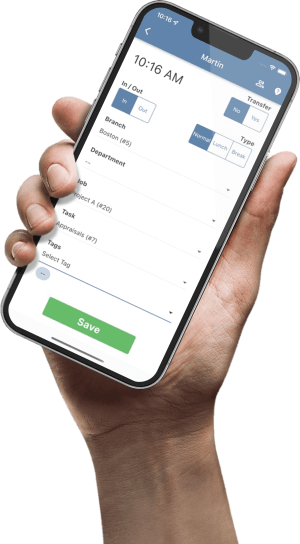
The TimeTrex punching guide documents the punch time and the branch, department, job and task associated with a punch. Review those fields if the employee was reassigned or if the time belongs to a different job.
3. Route the location problem to the right owner
- Employee sent to a different site. The supervisor confirms the dispatch change and the intended job. The scheduling or timekeeping administrator checks the assignment and allowed punch location before the next shift.
- One device cannot get a location. The administrator checks the approved station, app permissions and the error message. A location unavailable message and an outside-boundary message need different investigation. TimeTrex documents GPS requirements and time synchronization separately in its Stations guide.
- Several employees fail at the same entrance. Compare incident times and check the actual reporting entrance against the configured site. Ask the administrator to test that entrance with an authorized device before changing the boundary. If the problem spans multiple sites or stations, switch to the time clock outage procedure.
If the timecard is locked or the pay period is already closed, send the verified interval and any existing punch reference to payroll. Have payroll route the correction through its approved process. Leave the incident open with an owner and due time until payroll confirms the outcome.
Worked example of a punch saved eight minutes late
Illustrative scenario. A warehouse associate begins staging carts at 7:00 a.m. local time. Their first punch attempt at 7:01 is blocked at a temporary receiving entrance. A later punch from an authorized station saves at 7:08. The shift supervisor saw the associate start at 7:00 and confirms the assignment. The associate clocks out at 11:00 with no break in this example.
The timecard currently shows 7:08–11:00, or 3 hours 52 minutes. The verified interval is 7:00–11:00, or 4 hours. The reviewer corrects the start through the approved workflow and checks that the final timecard shows one four-hour interval. The administrator checks whether the temporary entrance needs an approved punch location before the next shift.
Record the decision and close both tasks
Use these fields in your approved incident log.
- Shift. Employee record reference, local date and time zone, and assigned job or site.
- Report. Reported work start, failed attempt time and message, and any saved punch reference.
- Decision. Verification source, approved correction, and reviewer.
- Timecard follow-up. Payroll or timekeeping owner, deadline, and final timecard reference.
- Site follow-up. Administrator, test location, and test result.
Close the timecard task when the approved interval appears once and carries the right assignment. Close the site task after someone tests the fix at the reporting location.
Keep the payroll review separate
For U.S. workers covered by the applicable FLSA recordkeeping provisions, the U.S. Department of Labor lists daily and weekly hours worked among the required records and allows different timekeeping methods when they produce complete, accurate records. The sequence above is a suggested internal procedure. Use your organization’s approved correction and escalation deadlines and consult the Department of Labor’s recordkeeping guidance for the federal requirements.
If your team uses TimeTrex, walk through the example on an authorized test station and trace the corrected punch through the timecard review. Explore TimeTrex Time & Attendance for the available timekeeping options.