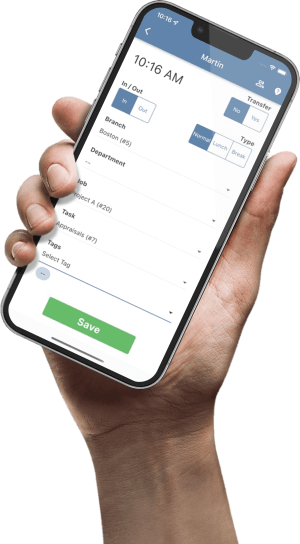

Give the change one accountable owner
A shift can change through an absence request, a customer booking, a supervisor’s decision, or an employee asking to work different hours. Whichever route starts the process, name one person to check the complete result. That person should know who can approve the revision and who will follow up if the employee raises a conflict.
Use a simple change reference, such as SC-042, when several updates are moving at once. Record the employee, work date, previous assignment, proposed assignment, reason category, and responsible supervisor. Keep private reasons in the appropriate personnel record; the operational message needs enough detail to explain the work.
Before approving the change, check employee availability, required skills, location, break coverage, nearby shifts, and any effect on the wider staffing plan. Have the responsible policy owner review applicable notice, consent, pay, and agreement requirements. Choose the communication timing to fit those requirements and the operation.
Use one current schedule
Tell employees where to find the current assignment. A screenshot, printed roster, or calendar entry can help someone remember a shift, but each needs a clear path back to the approved schedule. If the operation posts a paper roster, assign someone to replace the affected copy and identify when the replacement was issued.
Record progress against all four checkpoints. A supervisor may have approved the proposal before anyone updated the schedule. A saved edit may still be waiting for a notification. Keeping the checkpoints visible makes the next action easier to see.
Write a message the employee can act on
Include the full work date, previous and revised start and finish times, location, assignment, and time zone where relevant. State whether the change replaces the original shift or adds another assignment. Then explain how the employee should confirm the details or report a conflict.
Use the same time format throughout the message. “Next Tuesday, two hours later” leaves the reader to reconstruct the original plan. “Tuesday, November 17: 08:00–16:00 changes to 10:00–18:00 at West Service Desk” carries the information with it.
This is a fictional example to adapt to your own approval process, communication channel, and timing requirements. Check that the actual schedule has been updated before using wording that says the change is saved.
Ask for a meaningful response
Give employees an easy way to distinguish “I have seen this” from “I can work this assignment.” Someone may receive the message and immediately identify a transport, availability, or overlapping-shift problem. Record that response and route it to the supervisor who can resolve it.
Keep the response deadline realistic for the situation and consistent with your workplace arrangements. A near-term change needs an active follow-up route. A message sent to an unattended inbox can leave the next shift unresolved even when the wording is clear.
Worked example: a later start leaves an opening gap
A fictional service team needs an opening technician at West Service Desk from 08:00. Maya’s original assignment runs from 08:00 to 16:00. The supervisor proposes moving it to 10:00–18:00 to support a later customer appointment.
The revised clock span is still eight hours, but it leaves the opening period from 08:00 to 10:00 uncovered. Before approving the plan, the supervisor confirms Alex is available and qualified to cover that period, checks Alex’s other assignments, and arranges the required break coverage separately.
| Period | Assignment | Confirmation needed |
|---|---|---|
| 08:00–10:00 | Alex covers opening | Alex and the opening lead receive and confirm the assignment |
| 10:00–16:00 | Maya covers the revised shift | Maya confirms the revised start, finish, and location |
| 16:00–18:00 | Maya supports the later appointment | The closing lead checks the later handoff and site access |
The supervisor saves the approved assignments and checks that Maya’s original 08:00 start has been replaced as intended. Maya and Alex each receive the details relevant to their work. The opening and closing leads receive the updated handoff plan.
The lesson: an unchanged shift length can still change coverage, handoffs, and who needs to be informed. Check the time that moved away from a task as carefully as the time added somewhere else.
If Maya reports that she cannot stay until 18:00, keep the finding open and return it to the supervisor for a revised plan. When that plan changes again, identify the new version and explain which earlier instruction it replaces.
Check the schedule and notification settings in TimeTrex
The official TimeTrex Schedules guide includes a Notify Employee setting for schedule changes. For drag-and-drop Move or Copy actions, it describes notifications to affected assigned employees when the new shift is saved. Those drag-and-drop notifications apply to future shifts; open shifts are excluded. Check the behavior of the editing method you actually use.
The same guide distinguishes Move, which relocates the selected shift, from Copy, which leaves the original in place. Verify the saved result when your intention is to replace an assignment. Review the employee, date, hours, location, and any affected recurring shift.
The Preferences documentation describes individual notification enablement and browser, email, and mobile app channels. It also covers schedule synchronization with external calendars. Check the intended employee’s settings and test the chosen channel through your authorized process. Treat employee confirmation as a separate operating step.
For employee-initiated changes, TimeTrex Requests includes a Schedule Adjustment type routed through the supervisor hierarchy. Use your approved request and authorization workflow, then check the resulting assignment and communication.
Confirm available features in your edition, permissions, and configuration. The four checkpoints in this article are a proposed management process; they do not describe a built-in TimeTrex acknowledgment dashboard.
Close the handoff with a short change record
Keep the final assignment and response in the approved scheduling or operations record. Someone taking over the next shift should be able to tell what changed, who was informed, and what still needs attention.
- Decision: change reference, approver, employee, work date, and previous and final assignments.
- Communication: recipients, approved channel, notification time, and the instruction or version sent.
- Response: employee confirmation, any conflict raised, and the supervisor’s resolution.
- Coverage: affected roles, replacement assignments, breaks, and opening or closing handoffs.
- Follow-up: outstanding action, named owner, and the next review time.
Review unresolved changes before the affected shifts begin. Where the employee has not responded, use the agreed escalation route and record the outcome. An absence of replies should remain visible to the person responsible for coverage.
If the same problems recur, group them by cause: outdated availability, unclear ownership, inaccessible messages, repeated revisions, or a changed location omitted from the instruction. Fix the recurring cause in the scheduling process. The employee availability form guide can help improve the information used before a change is proposed.
Common questions
Does a sent notification complete the handoff?
Record the notification as one checkpoint, then follow your process for employee confirmation and conflict resolution. Keep unresolved assignments visible to the responsible supervisor.
Who else needs to hear about a changed shift?
Consider the employee, the supervisor, people receiving or handing over the work, and anyone responsible for site access or coverage. Send each person the operational details they need.
What if the schedule changes twice?
Identify the latest approved version, update the current schedule, and state which earlier instruction it replaces. Recheck recipients, coverage, and employee responses against that version.
Can we use one notice period for every location?
Have the responsible policy owner check the requirements and agreements that apply to each operation. Build the communication workflow around those requirements and document any approved local differences.
Connect schedule changes to a clear team handoff
Explore TimeTrex scheduling and leave management with an example of your approval process, employee notifications, and coverage needs.
Request a TimeTrex demoSources and product notes
Official TimeTrex documentation checked November 5, 2026. The four checkpoints, message template, change record, and service-team scenario are suggested operating practices.
- Schedules — schedule editing and notification controls.
- Preferences — individual notifications and calendar synchronization.
- Requests — employee schedule adjustment requests.