

How to Reconcile On-Call Time Before Payroll
To reconcile an on-call callout before payroll, match the incident log, the employee’s confirmed work intervals and the time entries for the same person and date. Add confirmed missing time, fix duplicate entries, and send any disputed standby, travel or minimum-pay treatment to payroll separately. Close the incident only after someone checks the corrected timesheet against the payroll preview.
Gather the records for one callout
Start with the dispatch or service ticket number, the employee who actually responded, the date and time zone, and the recorded punches and manual entries. Ask the employee or supervisor for the start and end of each work interval, including any work done remotely before arrival or after leaving. Keep the on-call roster nearby to identify who was assigned and who actually responded.
Ticket times give you points to investigate. A page may sit unanswered, a technician may start diagnosing before arriving, and a ticket may remain open long after the work stops. Ask what happened between these events before using any timestamp as a start or end time.
Match work one interval at a time
- Put the records on the same clock. Keep the original timestamps, then compare them in the same time zone. For overnight callouts, record the dates on both ends and have payroll confirm the workday or workweek boundary used for processing.
- Give each interval a disposition. Mark it keep if it matches an existing entry, add if confirmed work is missing, correct if it is recorded twice or against the wrong job, or review if the facts or pay treatment are unresolved. A single incident may contain all four.
- Approve the correction and check the result. Document the reason, original entry, approved change and reviewer. The TimeTrex timesheet correction guide shows how to carry the change through reapproval. Check the payroll preview for the employee, date and earnings lines affected.
In TimeTrex Enterprise, the Punch Summary Report shows the punch times and stations. Its elapsed totals exclude policy effects such as automatic deductions and premiums. Use the TimeSheet Detail Report to check the day-level regular, overtime, absence and premium records before comparing the relevant payroll lines.
Worked example: add 8 minutes and remove 14
At 22:02, a facilities technician receives a service ticket. Dispatch and the technician confirm the following intervals. All times are local on one date. The example covers active work only; any travel or standby treatment would be reviewed separately under the applicable rules and agreement.
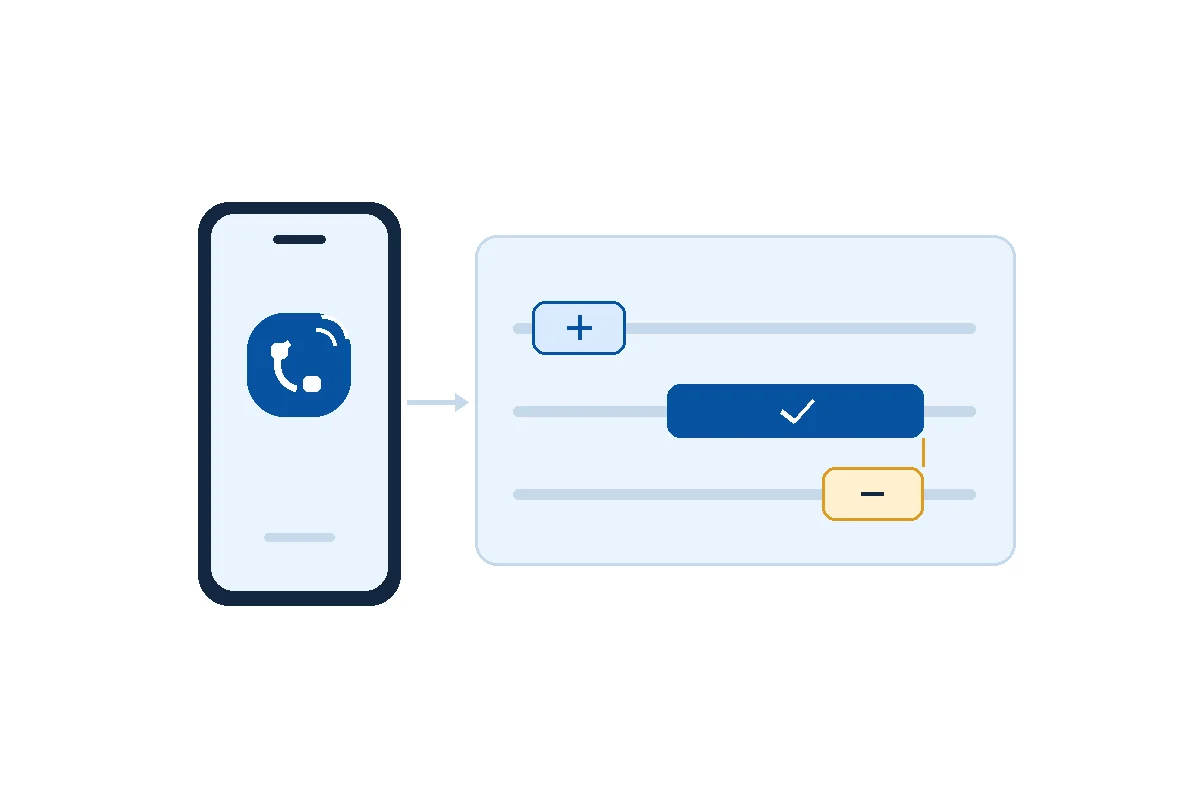
Add 8 minutes
Remote diagnosis is confirmed but missing from the timesheet.
Keep 36 minutes
The onsite punches match the confirmed work interval.
Remove 14 minutes
A manual entry covers the final part of the same onsite work already recorded.
Before: 36 + 14 = 50 recorded minutes. After: 50 + 8 − 14 = 44 minutes. A net reduction of six minutes would reach the same total but conceal which interval was missing and which one was duplicated.
The 15 minutes between remote and onsite work need a separate review if they include travel or another assigned task. Preserve the facts and give payroll the interval. If a minimum call-back payment or premium applies, payroll should record that treatment separately so the active work record remains accurate.
Close the record before payroll
Incident ID and employee reference · date and time zone · confirmed work intervals · original entry IDs · keep/add/correct/review decisions and reason · outstanding pay question and owner · supervisor approval · payroll preview check and date.
- Confirm the responder was matched to the right employee, site and job.
- Check that each confirmed minute appears once and that the corrected version was reapproved.
- Give unresolved issues a named owner and a deadline tied to payroll cut-off. Confirm handling of undisputed time with payroll while the question is open.
Try this process on one recent closed ticket. Pull the punch and timesheet detail for that day, rebuild the three-way match, and give the next supervisor the completed record as an example.
Disclaimer: The content provided on this webpage is for informational purposes only and is not intended to be a substitute for professional advice. While we strive to ensure the accuracy and timeliness of the information presented here, the details may change over time or vary in different jurisdictions. Therefore, we do not guarantee the completeness, reliability, or absolute accuracy of this information. The information on this page should not be used as a basis for making legal, financial, or any other key decisions. We strongly advise consulting with a qualified professional or expert in the relevant field for specific advice, guidance, or services. By using this webpage, you acknowledge that the information is offered “as is” and that we are not liable for any errors, omissions, or inaccuracies in the content, nor for any actions taken based on the information provided. We shall not be held liable for any direct, indirect, incidental, consequential, or punitive damages arising out of your access to, use of, or reliance on any content on this page.
About The Author

Roger Wood
With a Baccalaureate of Science and advanced studies in business, Roger has successfully managed businesses across five continents. His extensive global experience and strategic insights contribute significantly to the success of TimeTrex. His expertise and dedication ensure we deliver top-notch solutions to our clients around the world.
Time To Clock-In
Start your 30-day free trial!
Experience the Ultimate Workforce Solution and Revolutionize Your Business Today
- Eliminate Errors
- Simple & Easy To Use
- Real-time Reporting

Saving businesses time and money through better workforce management since 2003.
Copyright © 2026 TimeTrex. All Rights Reserved.