

How to Schedule Shift Handoffs Across Time Zones
To schedule shift handoffs across time zones, put both teams’ dated work windows on one UTC timeline and test them before and after each local clock change. Keep the shift with the fixed business requirement in its local time. Adjust the other shift or assign a qualified backup until the teams have enough shared time to transfer responsibility and someone is covering the work throughout.
In this guide
Set the coverage requirement before moving shifts
The scheduler and both shift leads should agree on the work that must stay covered, who can accept it and how much uninterrupted time the transfer requires. A dispatch handoff might include open incidents, pending callbacks and transfer of the duty queue. If both leads will be on a call, decide who will answer a new incident during that time.
Gather the outgoing lead’s availability, the incoming lead’s availability, both work locations, the roster version, and any breaks, travel or standing meetings that take either lead away from the handoff. Decide which local time must stay fixed. For example, the dispatch desk might have to open at 10:00 a.m. New York time while a Phoenix lead’s end time can move with approval. Record any hard limits on that change before choosing a fix.
Test the actual dated shifts on one timeline
- Write each whole window with dates and city-based time zones. Include the date on both sides of midnight. Use names such as
America/PhoenixandAmerica/New_Yorkwhere the system supports them. The offset follows the location and the date. - Convert the start and end of each window to UTC. Use the actual date you plan to staff. For a recurring roster, test a normal date under each combination of offsets and the first scheduled handoff after either location changes clocks. Test the transition shift itself if it runs during the clock change.
- Measure shared time and uncovered time separately. The shared window runs from the later start to the earlier end. In a two-shift sequence, the uncovered gap is the time from the outgoing end to the incoming start when the start is later. If they touch at exactly the same time, there are zero shared minutes and zero uncovered minutes. For shifts already on a common timeline, the shift handoff overlap calculator shows these two outcomes separately.
- Compare the usable shared window with the requirement. If 30 clock minutes overlap and one lead spends 20 of them in a meeting, the handoff might have only 10 usable minutes. Check whether those minutes are consecutive if your transfer requires an uninterrupted conversation.
During a fall-back transition, a local time such as 1:30 a.m. can occur twice. Include the offset or the matching UTC time when you record it. During spring-forward, a local time in the skipped interval needs a new valid start time. See NIST’s U.S. daylight saving time rules.
How the Phoenix–New York roster loses coverage
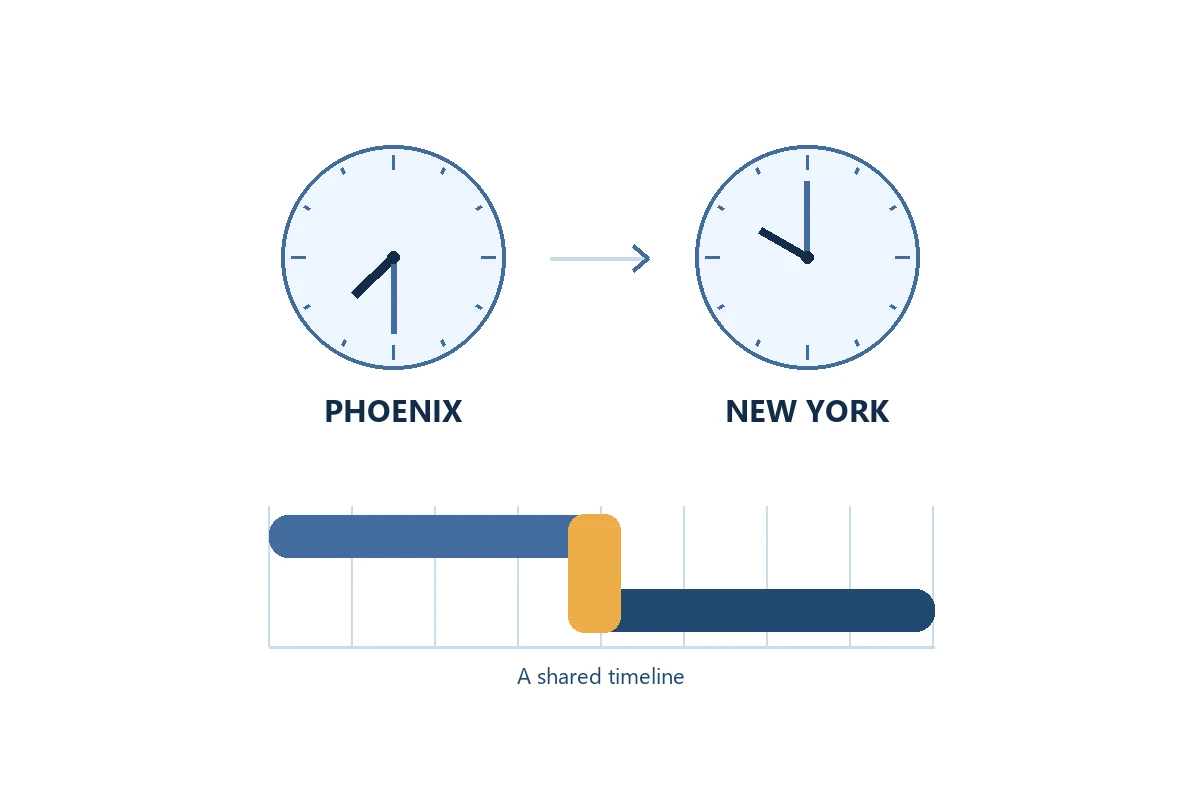
In this illustrative U.S. schedule, Phoenix covers dispatch from 05:30 to 07:30 local time. New York starts at 10:00 local time and covers the rest of the day. The leads choose a 15-minute live transfer before Phoenix signs off. Their initial roster assigns no other dispatch coverage around the changeover.
Phoenix stays on Mountain Standard Time (UTC−07:00). New York is UTC−05:00 before the March 14, 2027 clock change and UTC−04:00 afterward under the U.S. rule in effect at review. See the NIST offset table and time-zone FAQs.
Monday, March 8
- Phoenix coverage
- 05:30–07:30 MST
12:30–14:30 UTC - New York starts
- 10:00 EST
15:00 UTC
30 minutes uncovered. 15:00 minus 14:30. Shared time is 0 minutes.
Monday, March 15
- Phoenix coverage
- 05:30–07:30 MST
12:30–14:30 UTC - New York starts
- 10:00 EDT
14:00 UTC
30 minutes shared. 14:30 minus 14:00. There is no uncovered time.
Keep New York’s 10:00 start fixed. Extend or reassign qualified Phoenix coverage through 08:15 MST (15:15 UTC) on dates with the standard-time gap. The added 45 minutes cover the 30-minute gap and provide 15 shared minutes from 15:00 to 15:15 UTC. Confirm who covers the queue during the transfer before approving the change.
Choose a fix both locations can staff
If neither site has a fixed start or end, compare an earlier arrival with a later departure. An earlier New York start at 09:15 EST would meet the same 15-minute requirement in the example. It would also affect that employee’s availability and shift length. Ask the shift lead to check the rest of the roster and review the change with payroll when it affects paid hours or premiums.
If neither lead can move, assign a qualified bridge lead for the uncovered interval and time for the transfers on both ends. Give that lead queue access and authority to act. Use a written handoff with an explicit acceptance point only where the work permits it and continuous coverage is already assigned. An unread message still leaves responsibility with the person named in your escalation plan.
Apply a seasonal rule or date-specific change only to the affected shifts. Retest the first scheduled changeover when New York returns to standard time. Check holiday rosters, alternate sites and last-minute substitutes separately because they can change the people, hours or coverage that made the original plan work.
Confirm the handoff and keep a short record
Copy these fields into the shift log or schedule change record.
- Record the roster and dates, including the revision, each team’s location and time zone, the first affected shift and the next retest date.
- List the coverage windows in local time and UTC, the required and confirmed overlap, and any uncovered minutes.
- Name the owners, including both shift leads, the queue owner during transfer and the backup with an escalation contact.
- Agree on acceptance details, including where the receiving lead confirms, when the backup takes over and who checks the first live handoff.
For the March 8 example, the revised record should show 15 shared minutes and zero uncovered minutes. Ask both leads to read back their local times. On the first affected shift, the supervisor checks who covered the queue and when the receiving lead accepted it. If either answer differs from the roster, capture the actual times and fix the next scheduled occurrence.
Check the roster in TimeTrex
In the TimeTrex Schedules guide, the scheduler can choose the schedule date, review employee assignments and edit shifts. The Preferences guide documents the preferred time zone for displaying times. Ask each lead to check the dated roster in their own view after a change, and track acceptance through your team’s agreed process.
Request a TimeTrex scheduling demo and bring one dated handoff that crosses a seasonal clock change.
Disclaimer: The content provided on this webpage is for informational purposes only and is not intended to be a substitute for professional advice. While we strive to ensure the accuracy and timeliness of the information presented here, the details may change over time or vary in different jurisdictions. Therefore, we do not guarantee the completeness, reliability, or absolute accuracy of this information. The information on this page should not be used as a basis for making legal, financial, or any other key decisions. We strongly advise consulting with a qualified professional or expert in the relevant field for specific advice, guidance, or services. By using this webpage, you acknowledge that the information is offered “as is” and that we are not liable for any errors, omissions, or inaccuracies in the content, nor for any actions taken based on the information provided. We shall not be held liable for any direct, indirect, incidental, consequential, or punitive damages arising out of your access to, use of, or reliance on any content on this page.
About The Author

Roger Wood
With a Baccalaureate of Science and advanced studies in business, Roger has successfully managed businesses across five continents. His extensive global experience and strategic insights contribute significantly to the success of TimeTrex. His expertise and dedication ensure we deliver top-notch solutions to our clients around the world.
Time To Clock-In
Start your 30-day free trial!
Experience the Ultimate Workforce Solution and Revolutionize Your Business Today
- Eliminate Errors
- Simple & Easy To Use
- Real-time Reporting

Saving businesses time and money through better workforce management since 2003.
Copyright © 2026 TimeTrex. All Rights Reserved.