
An employee department transfer changes more than a name on the organization chart. Payroll needs the correct effective date, timekeeping needs the right department, and managers need a clear handoff for schedules and approvals. Use this checklist to carry one employee record through the move without losing track of the work already performed.
Define exactly what is changing
Start with the employee number and a written, approved transfer instruction. Distinguish a permanent department change from a temporary assignment or a few hours spent helping another team. Those situations may need different time-entry and reporting treatment.
Write an explicit value or “no change” for the department, branch, manager, scheduled shifts, wage, policy assignment and pay-period schedule. A move to another team does not, by itself, tell payroll that all of those settings should change. Keep changes to the approved scope.
This guide covers an internal move within the same employer. If the employing entity, work jurisdiction or employment arrangement changes, route the instruction to the people responsible for those requirements before using this routine checklist.
A copyable employee transfer handoff form
Copy these fields into your existing change-request process. Use one record with an owner and revision date so the outgoing manager, receiving manager and payroll team are working from the same instruction.
- Employee and request
- Employee number: ____ · Name: ____ · Request reference: ____
- Effective boundary
- Date and time, if needed: ____ · Time zone: ____ · First affected shift/pay period: ____
- Assignments
- Old → new department: ____ · Branch: ____ · Job/task, if used: ____
- Manager handoff
- Outgoing manager: ____ · Receiving manager: ____ · Backup reviewer: ____
- Pay and policies
- Approved wage change or no change: ____ · Policy/pay-period changes or no change: ____
- Open work
- Unresolved punches, requests, leave and approvals: ____ · Owner and deadline for each: ____
- Completion evidence
- Changed by/date: ____ · Independently checked by/date: ____ · First payroll reviewed: ____
Keep this handoff in the appropriate restricted company record. Put the operational instructions managers need in the handoff; keep unnecessary personal information out of widely shared scheduling notes.
Before the move: prepare the records and reviewers
1. Preserve the starting point
Capture the current assignments, future shifts and unresolved items before editing. Record which manager will review work performed before the transfer, who will handle later work, and who owns a correction discovered afterward. Give each unresolved item an owner instead of treating the department change as its resolution.
2. Separate assignment changes from wage changes
If pay stays the same, record that explicitly. If an approved wage change accompanies the transfer, confirm its own effective date. The two dates can differ. TimeTrex’s Wages documentation directs administrators to add a new wage record for a wage change to preserve wage history. It also describes a recalculation option affecting open pay periods from the wage’s effective date. Review the affected period before accepting recalculated results.
3. Check the actual approval relationship
Do not assume changing a department also assigns the receiving manager as approver. TimeTrex’s Hierarchy documentation describes separate relationships for requests, timesheets, exceptions and permissions. Confirm the relevant objects and the manager’s permitted employee scope. Have an authorized administrator coordinate the change and test the intended access.
Agree on a handoff deadline that leaves payroll time to resolve questions. Your payroll cutoff policy provides the wider close calendar; the transfer record should name the people accountable within it.
At the changeover: test the work the employee will do
Update the approved fields, then read them back. TimeTrex’s Employees documentation identifies default branch, department, job and task as fields used for report filtering and new records such as schedules. Check existing future records separately rather than assuming a new default has rewritten them.
- Schedule: Check the employee’s next shifts, assigned department and any overlaps or missing coverage. Confirm that both managers understand the handoff.
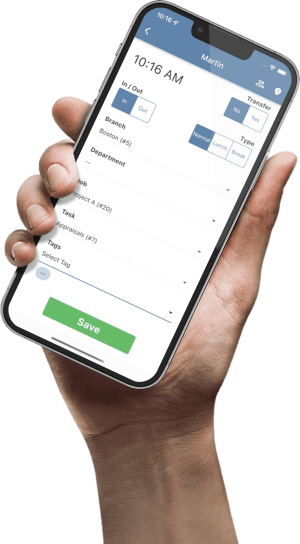
- Time capture: Confirm that the employee can select the intended department using their normal time-entry method. Explain how temporary work back in the old department should be recorded.
- Approvals: Verify the receiving manager can see the intended employee and work. Check where pre-transfer pending items are now visible, and retain a named reviewer until they are resolved.
- Reporting: Test both employee-level totals and department-level results for the affected dates. A current profile field and the department recorded on a time entry answer different questions.
Worked example: a midweek department move
In this fictional example, Alex moves from Packing to Dispatch before Thursday’s shift. The approved hourly rate stays at $24, the pay period stays the same, and Alex works 24 straight-time hours in Packing and 16 in Dispatch that week. The example excludes overtime, premiums, deductions and employer costs.
| Department | Hours | Straight-time wages |
|---|---|---|
| Packing | 24 | 24 × $24 = $576 |
| Dispatch | 16 | 16 × $24 = $384 |
| Total | 40 | $960 |
The outgoing manager reviews the Packing entries; the receiving manager reviews Dispatch. Payroll compares the 40-hour employee total with the 24/16 department split and checks for duplicate or missing entries. The receiving manager also checks next week’s schedule so the old assignment does not continue unnoticed.
If the employee total is 40 hours but all 40 appear under Dispatch, investigate the report’s grouping and filters and the departments attached to the underlying records. Do not change accurate hours just to make a report match the example. For a deeper explanation of grouping costs, see labor cost allocation by department.
First-payroll transfer review checklist
Use this checklist as a review aid. Checks on this page are temporary and do not save a company record; record completion and exceptions in your own transfer request.
Close the transfer only after the first affected payroll review. If something differs, keep the request open, document the cause and route the correction through the normal review process. Avoid making undocumented changes to a previously reviewed period.
Connect the transfer to everyday timekeeping
TimeTrex brings employee records and timekeeping into the workforce workflow. Review your existing configuration with your administrator and use TimeTrex time and attendance to explore how time capture and review fit your team’s process.
Common questions
Does a department transfer require a new employee record?
For the same person continuing with the same employer, begin by reviewing the existing employee record and approved changes. Creating a second record without a defined reason can split the history. A change of employing entity or employment arrangement needs a separate review by the responsible team.
Will changing the default department update every existing shift?
Do not assume it will. The documented defaults apply to filtering and new records such as schedules. Inspect already-created shifts, time entries and reports for the affected dates and verify the result in your configuration.
What if the old manager has an unresolved timesheet?
Name a reviewer before changing access, identify the open items and confirm where they remain visible afterward. Keep the transfer open until those items are resolved or formally handed off with an owner and deadline.
What if the employee helps the old department later?
Record that work using your approved time-entry and department allocation process. A permanent home department and the department receiving particular hours can differ. Review the actual entries rather than repeatedly changing the employee’s default to move a few hours.
Sources and implementation notes
Product references were reviewed on October 23, 2026. The Employees, Wages and Hierarchy guides support the specific field and workflow descriptions above. Available options depend on edition, permissions and configuration. The handoff form and checklist are suggested operating practices; Alex’s example is fictional.