
Start with the workflow, then choose the kiosk
Small businesses often compare time clock kiosks by device: tablet, terminal, wall clock, biometric clock, badge reader, or browser station. That is understandable, but it is backwards. A kiosk is only useful if it solves the real business problem: creating a complete and accurate record of work time, then getting that record approved and paid without a last-minute scramble.
The U.S. Department of Labor says covered employers must keep accurate records such as hours worked each day and total hours worked each workweek, and it also says employers may use any timekeeping method they choose as long as it is complete and accurate. That means the device is not the compliance strategy. The workflow is.
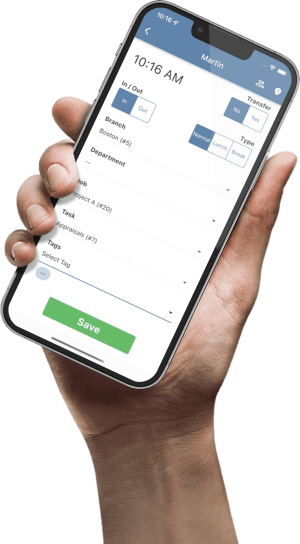
A good kiosk helps employees clock in, clock out, start meals, end meals, switch jobs, request corrections, and confirm their time. A better kiosk also helps managers see late arrivals, missed punches, long breaks, early starts, approaching overtime, location issues, and unapproved exceptions before payroll is due.
Employee, time, date, device, location, job, break, and identity evidence when appropriate.
Managers approve exceptions, corrections, schedules, overtime, and job transfers.
Approved time flows into payroll, job costing, reporting, and retained records.
The main types of time clock kiosks
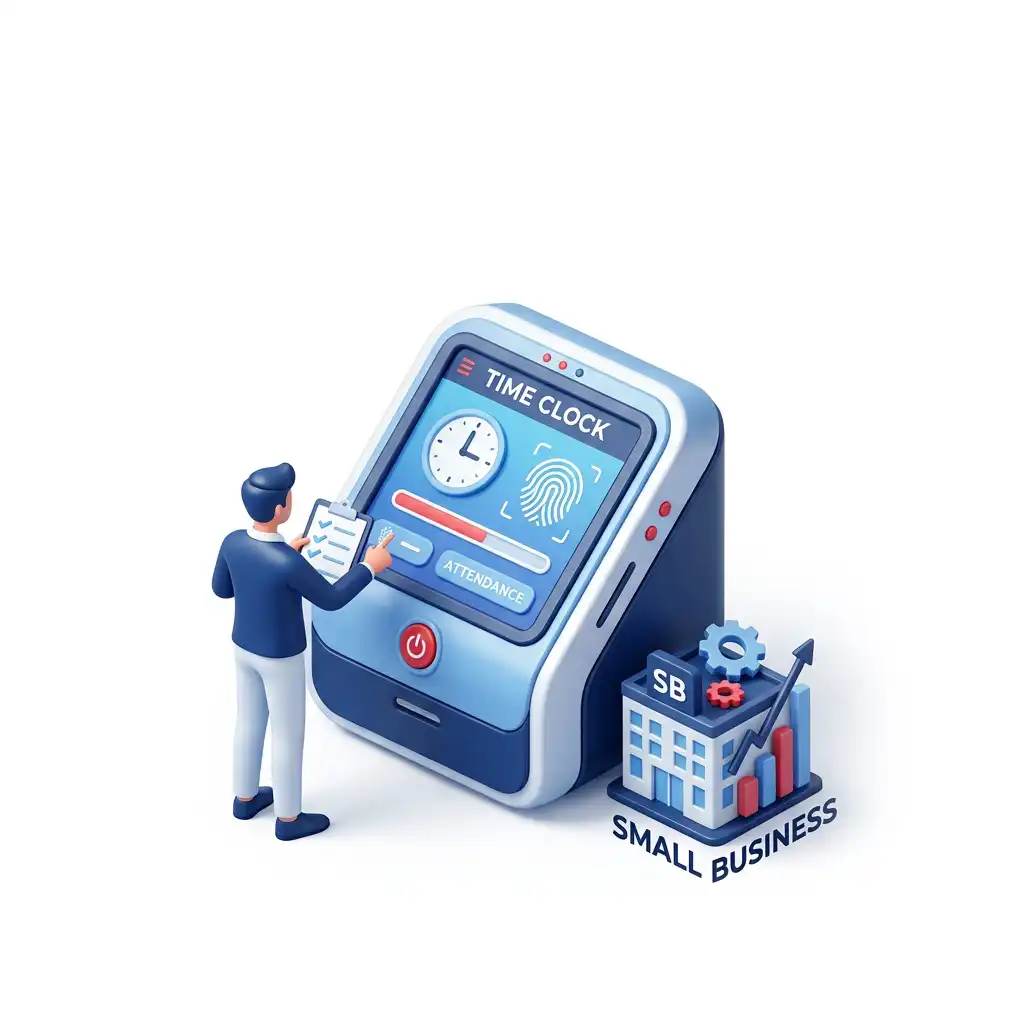
There is no single best kiosk for every small business. A coffee shop, cabinet shop, medical clinic, hotel, cleaning company, landscaping crew, and two-location retailer have very different traffic patterns. Use the table below to narrow the hardware choice before you spend money on mounts, tablets, terminals, or add-on devices.
| Type | Best for | Strength | Watch out for |
|---|---|---|---|
| Shared tablet or phone kiosk | Retail, restaurants, clinics, offices, shops, and small warehouses. | Lower hardware cost, fast rollout, camera support, flexible placement, and easy replacement. | Needs a rugged case, mount, charging plan, screen lock, good lighting, and clear device ownership. |
| Dedicated wall terminal | Busy entry points, manufacturing floors, warehouses, and larger shift-change volume. | Stable location, familiar punch-clock behavior, and lower risk of device wandering away. | Can be more expensive, less flexible, and harder to move when traffic patterns change. |
| Browser punch station | Back offices, service desks, dispatch counters, and shared administrative computers. | No special kiosk hardware if a locked-down workstation already exists. | Shared logins, open browser sessions, and weak identity controls can create payroll disputes. |
| Mobile-first clock with kiosk backup | Field service, construction, cleaning, landscaping, home health, and multi-site teams. | Supports remote work, geofencing, job location controls, and real-time supervisor visibility. | Requires clear policy on GPS/location data, device use, battery life, and exceptions. |
| Hybrid kiosk model | Businesses with front-of-house staff, back-of-house staff, managers, and mobile workers. | Lets each employee use the right capture method while payroll keeps one system of record. | Needs consistent rules so employees do not punch differently just because they work in different places. |
18 things to check before choosing a time clock kiosk
Use this list as a buying checklist, demo script, and pilot plan. A vendor should be able to show each item in a real workflow, not just name it on a feature page.
Define the actual timekeeping problem
Do not start with "we need a kiosk." Start with the reason. Are employees forgetting to clock out? Are managers editing time from memory? Are breaks hard to prove? Are job transfers missing? Is payroll manually retyping hours from paper sheets? Are employees clocking in for each other? Each problem points to a different kiosk design.
Best practice: write down the top three payroll-day pain points and ask every vendor to demonstrate how the kiosk prevents or resolves them.
Choose the kiosk type around traffic flow
A shared device near the entrance may work beautifully for ten employees. It can create a line for seventy employees arriving in the same five-minute window. Watch the shift-change rush. Count how many people need to punch, how long each punch takes, whether workers wear gloves, whether they carry tools, and whether supervisors are nearby when exceptions happen.
Demo question: how many employees can clock in during a real shift rush before the process slows down?
Make payroll accuracy the core requirement
A kiosk that captures a punch but leaves payroll to spreadsheets is only half a solution. The time clock should collect the details payroll needs: the employee, punch type, work date, workweek, department, job, rate context, break status, approval status, and exception history.
The DOL's overtime guidance emphasizes the workweek as a fixed 168-hour period and says averaging hours over two or more weeks is not permitted under federal overtime rules. That is why the kiosk should not merely collect daily punches. It should help the business see weekly overtime exposure before payroll is finalized.
Verify the audit trail, not just the punch screen
Every kiosk looks simple in a sales demo. The real test is what happens after something goes wrong. Can you see original punches, edits, who made the edit, when they made it, the reason, manager approval, and employee confirmation? Can a supervisor identify missing punches without reading every time card manually?
Red flag: a system that lets managers overwrite time without a reason, history, or approval step.
Pick the identity method carefully
Identity is where kiosk decisions get delicate. PINs are simple, but employees can share them. Badges and QR codes are fast, but they can be lost or handed to someone else. Photo capture can add accountability without requiring full biometric enrollment. Facial recognition can reduce buddy punching and speed up high-volume clock-ins, but it also raises privacy, consent, retention, and employee-communication questions.
Practical rule: choose the least intrusive identity method that reliably solves your actual risk. A five-person office may not need the same controls as a multi-site employer with unsupervised shifts.
Control buddy punching without overcollecting data
Buddy punching is real, but small businesses should not jump straight to maximum surveillance. Look for layered controls: individual logins, device restrictions, manager alerts, optional photo capture, biometric checks where appropriate, geofencing for mobile work, and exception reporting. This gives you control without turning every punch into an employee-relations problem.
The FTC's data security guidance tells businesses to collect only what they need, keep sensitive information safe, and dispose of it securely. Apply that same discipline to time clock data, especially photos, biometric templates, GPS data, and employee identifiers.
Demand offline mode and clean sync behavior
WiFi goes down. Cellular signal fades. Tablets update at awkward times. A kiosk should still let employees punch when connectivity is interrupted, then sync cleanly when service returns. The key is not just "offline mode." Ask what data is stored locally, how long it can stay offline, whether punches are time-stamped at the device, how sync conflicts are handled, and whether managers can see which punches were captured offline.
Demo question: please disconnect the kiosk from the network, record several punches, reconnect it, and show where those punches appear in the time card and audit trail.
Match the kiosk to the physical worksite
A kiosk near a bakery oven, mechanic bay, field trailer, warehouse dock, or clinic reception desk needs different protection than one in a quiet office. Consider lighting, glare, gloves, dust, moisture, impact risk, theft risk, charging, power backup, cable routing, screen height, wheelchair access, employee privacy, and whether the device is visible to customers.
Best practice: pick the location during a real shift change, not during a quiet office walk-through.
Test punch speed with real employees
A time clock that takes 20 seconds per punch may seem fine in a demo. During a shift rush, that can create a line, encourage early punching, and annoy employees before the day starts. Test the exact workflow: clock in, clock out, start meal, end meal, transfer departments, choose a job code, confirm a missed punch, and recover from a failed scan or forgotten PIN.
Red flag: the kiosk is fast only when employees do a plain in/out punch, but slows down whenever they need job costing, breaks, or transfers.
Confirm break and meal-period handling
The DOL's hours-worked guidance explains that short rest periods are generally counted as work time and that bona fide meal periods generally require the employee to be completely relieved from duty. A kiosk should help you apply your policies consistently: meal start, meal end, missed meal, short meal, paid rest breaks, automatic deductions where lawful, manager review, and employee attestations if your policies require them.
Demo question: show what happens when an employee forgets to punch back from lunch, takes a short meal, or works through a meal period.
Look beyond in and out punches
Small businesses often outgrow basic punch clocks faster than expected. Ask whether employees can switch departments, locations, jobs, tasks, tips, quantities, service orders, or cost centers from the kiosk. A contractor may need job costing. A manufacturer may need labor by operation. A restaurant may need shift, tip, and role detail. A clinic may need department transfers. A retailer may need location-specific reporting.
Best practice: buy for the next operational problem, not only the current one.
Connect scheduling before attendance becomes messy
A kiosk is more useful when it knows who was scheduled, where they were scheduled, and when they were expected. That unlocks early/late alerts, no-show visibility, unauthorized overtime warnings, and better manager review. Without schedule context, the kiosk can record what happened, but it cannot easily show whether it was planned.
Demo question: can the kiosk warn or flag a punch when an employee clocks in too early, at the wrong location, or outside the scheduled shift?
Review manager approvals before buying
Time clock selection often focuses on employees, but payroll accuracy usually depends on managers. The system should make it easy for managers to approve time cards, resolve exceptions, add reasons, review overtime, handle missed punches, and see what still needs attention. If manager review is clumsy, the kiosk will simply move the mess from paper to software.
Red flag: managers have to export reports, edit spreadsheets, or message payroll separately to explain every correction.
Require exception reporting and alerts
The best kiosk is quiet when everything is normal and loud when something needs review. Look for alerts and reports around missed punches, late arrivals, early departures, long shifts, short meals, approaching overtime, unapproved time cards, location mismatches, offline punches, duplicate punches, and edits after approval.
Best practice: ask for the three reports your payroll person will use every pay period, not a generic reporting menu with hundreds of unused options.
Model the total cost of ownership
The kiosk price is not only the device. Include the software subscription, payroll module, employee count, time clock add-ons, tablets or terminals, protective cases, wall mounts, power, cellular data, mobile device management, replacement devices, implementation help, integrations, manager training, and support. Also include the cost of manual cleanup if the kiosk does not connect to payroll cleanly.
Buying tip: compare the full first-year cost and the full renewal-year cost. Some solutions look cheap until you add hardware, biometric modules, payroll exports, support, or integration work.
Check data security, privacy, and biometric policy
Time clock kiosks may handle names, employee IDs, schedules, work locations, photos, biometric data, GPS/location data, pay-related information, and manager notes. Treat that as sensitive employee information. Before enabling photos, biometrics, or location tracking, review your state or provincial rules, retention periods, consent language, access controls, and deletion process.
Some jurisdictions have biometric identifier laws, such as Washington's biometric identifier chapter. Other states and provinces may have their own requirements or general privacy rules. This is one area where a small business should not rely on a sales brochure alone.
Make integrations a first-class requirement
If the kiosk cannot send clean time data into payroll, accounting, HR, or job-cost systems, someone will eventually rebuild the missing bridge by hand. That usually means exports, imports, spreadsheet formulas, and payroll-day stress. Ask whether the vendor supports your current payroll process, whether you can process payroll in the same platform, and whether integrations are standard, flat-file, API-based, or custom.
Demo question: show how an approved time card becomes payroll-ready without retyping hours.
Pilot the kiosk before you roll it out everywhere
A pilot catches the problems that a buying checklist misses. Run one location, one department, or one shift for a full pay period. Include the people who are most likely to reveal friction: new hires, supervisors, employees with transfers, employees who work split shifts, field staff, and the person who closes payroll.
Success test: after one pay period, payroll should be faster, exceptions should be clearer, employees should know how to punch, and managers should trust the data.
A practical buyer scorecard
Use a simple scorecard so the decision does not collapse into "which kiosk looked nicest in the demo." Score each category from 1 to 5, then reject any option with a low score in payroll accuracy, manager workflow, or security. A beautiful kiosk that fails payroll is still a bad kiosk.
| Category | What a 5 looks like | What a 1 looks like |
|---|---|---|
| Employee usability | Employees can punch, take meals, transfer jobs, and recover from errors quickly. | Employees need a manager for ordinary punch tasks. |
| Payroll readiness | Approved hours flow into payroll with overtime, breaks, jobs, and exceptions intact. | Payroll still rebuilds time cards in spreadsheets. |
| Manager workflow | Exceptions, approvals, edits, audit trail, and reports are clear before payroll day. | Managers approve from memory or send corrections outside the system. |
| Reliability | Offline mode, sync logs, device controls, support, and replacement plans are documented. | Internet outage or device failure stops punching. |
| Identity controls | Identity method fits risk level, privacy rules, and employee trust. | Shared PINs or unreviewed biometric rollout create disputes. |
| Future fit | The same platform can support scheduling, mobile teams, job costing, reports, and growth. | The kiosk only records basic in/out punches. |
Where TimeTrex fits into the kiosk decision
TimeTrex is a strong fit when a small business wants the kiosk to be part of a larger workforce workflow instead of a standalone punch collector. TimeTrex supports browser-based time tracking, mobile time clocks, biometric facial recognition time clocks, geofencing, device controls, scheduling, leave, reporting, job costing, integrations, and payroll features depending on the edition and configuration.
Tablet or phone kiosk
TimeTrex says affordable off-the-shelf tablets or phones can be turned into facial recognition time clocks, which can help small businesses avoid locking themselves into costly proprietary hardware.
Payroll-ready time
TimeTrex connects time and attendance with payroll workflows, which matters when the goal is fewer payroll edits, not just a modern-looking punch screen.
Room to grow
As the business adds departments, locations, mobile employees, job costing, scheduling, and custom integrations, the kiosk can remain one capture point inside a broader system.
A 30-day rollout plan for a small business kiosk
The safest rollout is short, practical, and tied to payroll. Do not spend months planning a kiosk in theory. Configure a realistic pilot, run a pay period, and learn from actual punches.
Map the rules
Document workweek start, pay periods, roles, departments, job codes, meal rules, break practices, rounding policy, overtime triggers, manager approvals, and who is allowed to edit time.
Configure and mount
Set up employees, devices, kiosk location, power, WiFi/cellular, lock screen, identity method, supervisor access, alerts, and the basic payroll export or payroll workflow.
Pilot one pay cycle
Have employees punch normally. Track missed punches, slow steps, failed scans, manager questions, offline behavior, break exceptions, and payroll cleanup time.
Fix and expand
Adjust kiosk placement, training, alerts, job codes, manager permissions, and employee instructions. Expand only after payroll confirms the data is easier to approve and pay.
Common mistakes to avoid
Buying hardware before solving policy
A kiosk cannot decide whether early punches are paid, when meal exceptions require approval, or who can edit a time card. Write the policy first, then configure the kiosk to match it.
Choosing the cheapest device and ignoring replacements
A low-cost tablet may be the right move, but only if you budget for a case, mount, charger, backup device, and a plan for updates or damage.
Skipping employee communication
Tell employees what is collected, why it is collected, who can see it, how corrections work, and what to do when the kiosk fails. Silence creates suspicion.
Assuming payroll integration can wait
If integration waits, the business may normalize manual cleanup. Test the payroll workflow during the pilot, not after everyone is already clocking in.
Ignoring supervisor behavior
Employees can punch perfectly and payroll can still be late if managers do not approve exceptions. Train supervisors on the review queue, not only the punch screen.
Turning on biometrics without a policy review
Biometrics can be useful, but they require careful handling. Review consent, retention, storage, alternatives, and state or provincial rules before rollout.
FAQ: choosing a time clock kiosk
What is a time clock kiosk?
A time clock kiosk is a shared device employees use to record work time. It may be a tablet, phone, wall terminal, browser station, or dedicated time clock. The best kiosks do more than collect in/out punches: they support breaks, job transfers, manager approvals, identity controls, reports, and payroll-ready time records.
Is a tablet time clock kiosk good enough for a small business?
Often, yes. A tablet or phone kiosk can be a cost-effective choice if it is mounted securely, protected with a rugged case, connected reliably, locked to the time clock workflow, and supported by software that handles approvals and payroll. A dedicated terminal may still make sense for high-volume or harsh environments.
Should a small business use biometric time clocks?
Biometric time clocks can help reduce buddy punching and speed up identity verification, but they are not automatically the right choice for every workplace. Review privacy rules, employee communication, consent, retention, data security, and alternatives before turning biometrics on.
What features matter most in a time clock kiosk?
The most important features are fast punching, reliable identity checks, offline mode, clean sync, break and meal handling, job or department transfers, manager approvals, exception alerts, audit trails, payroll integration, secure data handling, and usable reporting.
How many kiosks does a small business need?
Start by counting the number of employees who punch during the busiest five-minute window. If a single kiosk creates a line or encourages early punching, add a second kiosk, move the device, or combine kiosk punching with approved mobile punching for certain roles.
Can a time clock kiosk help with payroll compliance?
It can help, but it does not replace a compliant payroll policy. A good kiosk supports complete and accurate records, manager review, break tracking, overtime visibility, and retained audit history. Employers still need to configure rules correctly and follow federal, state, provincial, and local requirements.
What is the biggest red flag when buying a time clock kiosk?
The biggest red flag is a kiosk that looks easy for employees but leaves managers and payroll with manual cleanup. If missed punches, break exceptions, job transfers, overtime, and approvals do not flow cleanly into payroll, the kiosk will not solve the real problem.
Sources and further reading
- TimeTrex TimeClock
- TimeTrex Time & Attendance
- TimeTrex Mobile Time Clock
- TimeTrex Biometric Facial Recognition
- TimeTrex Integrations
- TimeTrex API Integration
- TimeTrex Pricing
- U.S. Department of Labor: FLSA recordkeeping requirements
- U.S. Department of Labor: Hours worked under the FLSA
- U.S. Department of Labor: Overtime pay
- Federal Trade Commission: Data security guidance for businesses
- Washington State Legislature: Chapter 19.375 RCW biometric identifiers