
Split a pay period across two months by grouping approved hours by work date. Apply the same employee, site and hour-type filters to both months, then check that the two totals add back to the approved pay-period total. Keep the payroll period and payment date as separate fields so the month-end report can explain where the hours belong.
1. Set the reporting scope before you total anything
Have the report owner write down the calendar month, reporting time zone, included employees and sites, and which hour types count. A worked-hours report might include regular and premium work while excluding paid leave. If the report tracks paid hours, label that measure and keep leave in its own category. Apply the same scope to the total you will reconcile against.
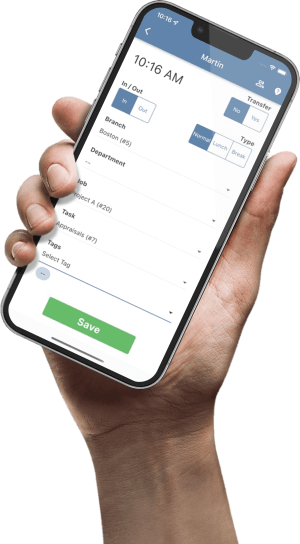
Take an approved time snapshot and record when it was pulled. Use one row per employee, work date and assignment or segment. Include the work date, hours, hour type, site or cost center, approval status and a row ID. Keep pay-period end date and payment date in separate columns if you need them for comparison. The TimeTrex TimeSheets guide shows where punch exceptions and branch, department, job or task time appear when configured.
2. Split by work date and reconcile the totals
- Group the approved rows. Put work dated on or before the last day of the first month in that month. Put work dated from the first day of the next month in the next one. If using timestamps, treat midnight at the start of the new month as the first instant of the new bucket.
- Resolve boundary shifts. Confirm your organization’s reporting convention for overnight shifts. If it allocates hours to the actual calendar date, use approved intervals and assign each side of midnight once, accounting for breaks where they occurred. If it uses the shift’s start date, document that convention and apply it consistently. See the overnight time tracking guide for collecting dates, time zones and punch types before reviewing a boundary shift.
- Reconcile on identical inputs. Compare the sum of both month buckets with the approved full-period hours from the same snapshot. Repeat by site and hour type if those splits matter. A total can agree even when two sites offset one another. If the totals disagree, look for a missing row, duplicate segment, mixed time zone, filter difference or early rounding.
If the report is for the entire month, bring in approved rows from the other pay periods that overlap that month. The split of one crossing pay period is only one part of the monthly total.
3. Worked example: 76 hours across October and November
Illustrative pay period. A warehouse employee’s Oct. 26–Nov. 8 period contains 76 approved worked hours at the first snapshot. The dates below represent the only days worked in the example. All shifts are day shifts. The report excludes leave and uses the local work date.
| Work dates | Month | Hours |
|---|---|---|
| Oct. 26–28 | October | 24 |
| Oct. 29–30 | October | 16 |
| Nov. 2–6 | November | 36 |
| Pay-period total | Both | 76 |
Check. October has 24 + 16 = 40 hours. November has 36 hours. Together they equal 76. A later approval adds two hours to Oct. 30. In the revised snapshot, October rises to 42, November remains 36, and the comparable full-period total rises to 78. Record the two-hour October adjustment against the first version so the reviewer can explain the change.
4. Give the next reviewer a checkable handoff
- Supervisor: Confirm missing approvals, ambiguous dates and late corrections. Keep pending hours visible as exceptions until they are resolved.
- Report owner: Record the time zone, filters, snapshot time and month totals. Keep the first version and a dated change record so the same correction is applied once.
- Reviewer: Match month A plus month B to the full-period total from the same snapshot. If a published internal report is frozen, follow your reporting policy for a revised version or disclosed adjustment.
Copy this reconciliation line
Pay period | Snapshot time | Scope and time zone | Month A hours | Month B hours | Full-period hours | Difference | Open correction and owner | Reviewer
Example: Oct. 26–Nov. 8 | Nov. 9 snapshot | Warehouse worked hours, local time | Oct. 40 | Nov. 36 | 76 | 0 | Oct. 30 correction pending with site supervisor | Report owner
Try the check on one crossing pay period before rolling it out. If the monthly buckets fail to match the approved total, compare the row IDs and approval snapshot first. That usually gives the reviewer a specific difference to investigate instead of a total to explain.