
To reconcile badge logs and time punches, line up the records for the same employee, site and local time, then confirm when the employee actually started or stopped working. A door swipe records an access event. Use it to narrow the review, then base any punch correction on corroborated work activity and record who approved it.
What to keep: one exception record that explains whether payroll retained the original punch, corrected it, or escalated the discrepancy.
Gather records for the affected shift
Ask the site supervisor to identify the shift and the discrepancy. The timekeeping reviewer should pull the original punch, punch direction and station, and the security administrator should supply only the authorized door events for the review window. Include the original schedule for context and ask the employee what they were doing around the disputed time.
Match the badge assignment to the employee on the date of the event. Confirm the door, site and event result, such as access granted or denied. Keep the raw timestamps and convert both systems to the same time zone before comparing them. Verify the date on overnight shifts and the recorded offset if an hour repeats. If several employees show the same offset, ask the system owner to check the clock settings before changing individual punches.
In TimeTrex, the Punch Summary Report shows employee punch-in and punch-out times and the stations used. Compare those rows with the separately supplied access events. Use the smallest authorized set of records needed to resolve the exception.
Worked example: a 19-minute gap, a five-minute correction
Consider an illustrative shift for employee E-07. All times are on the same date at the same site in local time. The employee’s end time and approved break are unchanged.
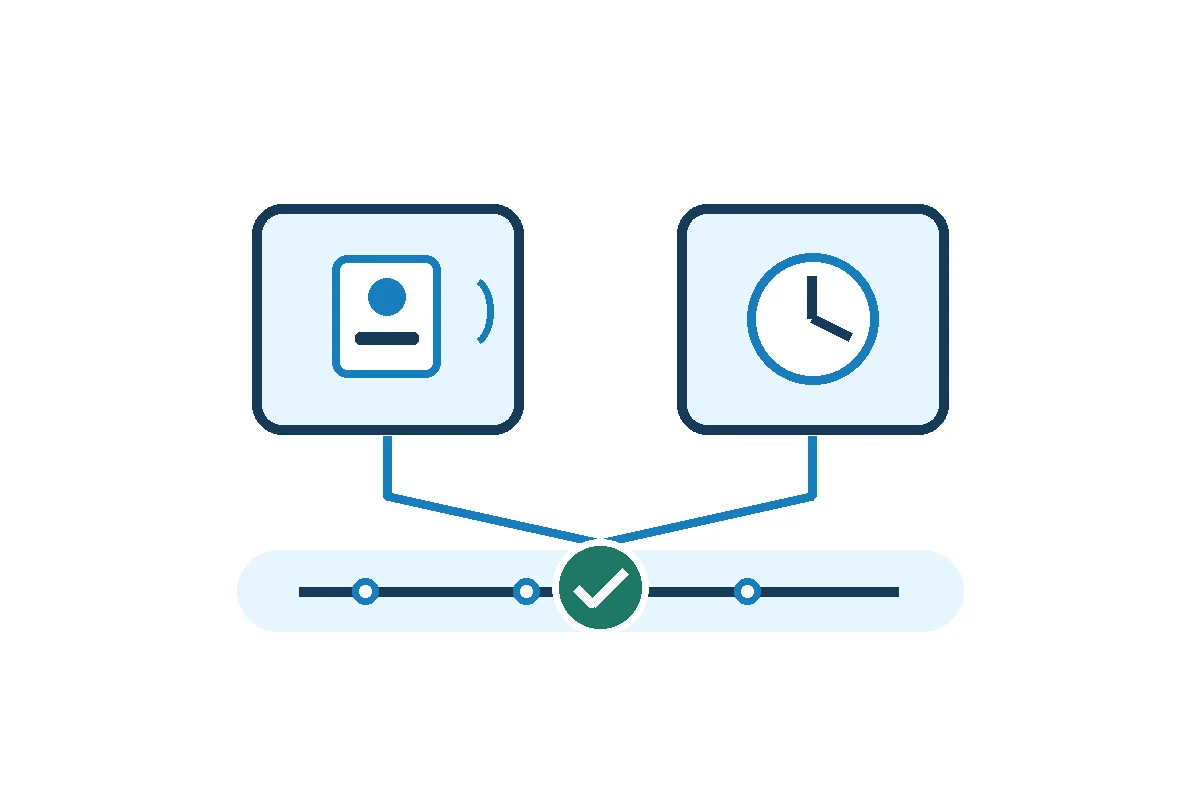
- Door access granted. The badge event establishes when the assigned credential was accepted at the door.
- Scheduled start. This is the planned start time.
- Work started. The employee confirms starting a handoff at this time, and the supervisor corroborates it with the dated handoff record.
- Time clock punch. The employee clocks in after the handoff starts.
Retain, correct, or escalate the punch
- Retain: If the employee and supervisor confirm the punch already reflects when work began or ended, record why the badge event differs and keep the original punch.
- Correct: If the review corroborates a different work time, use the authorized correction process. Preserve the original punch, corrected time, reason, evidence reference, reviewer and approval.
- Escalate: If the sources conflict, the badge assignment is uncertain, or the work time is unclear, send the exception to the payroll or HR owner before the approval cutoff. The owner should document how payroll will handle the unresolved time.
Repeated swipes can come from a retry or a move between secured areas. A missing swipe can occur when employees use another entrance or the site does not record exits. Remote work and work at another site can also leave no event in the local door log. Ask what the access system actually records before drawing a conclusion.
After an approved correction, reopen the affected timesheet and compare it with the payroll input for the same employee and pay period. TimeTrex’s TimeSheet Summary Report can help review the resulting regular, overtime, absence and premium totals. If time is rounded or affects a pay rule, record the raw change and the resulting payroll change separately. If payroll already closed, route the correction through your post-close process.
Use this exception record
Keep this in the approved timekeeping or payroll case log. Reference the restricted source record when needed so the case does not duplicate access data.
Case ID / employee reference / site / shift date:
Raw punch and source station / original time zone:
Relevant door event, outcome and source reference:
Employee and supervisor confirmation / work evidence:
Decision: retain / correct / escalate
Approved time and reason / reviewer / approval date:
Timesheet and payroll input checked / owner / follow-up date:
Follow the corrected time through payroll
Once the exception is resolved, use the Time Clocks to Payroll guide to trace the approved time through validation, pay rules and the payroll handoff.